Weekday mornings
Calendar, weather and the school run between seven and nine, then back to something calmer.
Features Scheduling
The screen that is useful at eight in the morning is the wrong screen at eleven at night. So change it.
Scheduling is on every plan, per screen, from each screen's own editor. The all-screens timeline — dragging scenes across every display at once, with cross-fades — needs Pro.
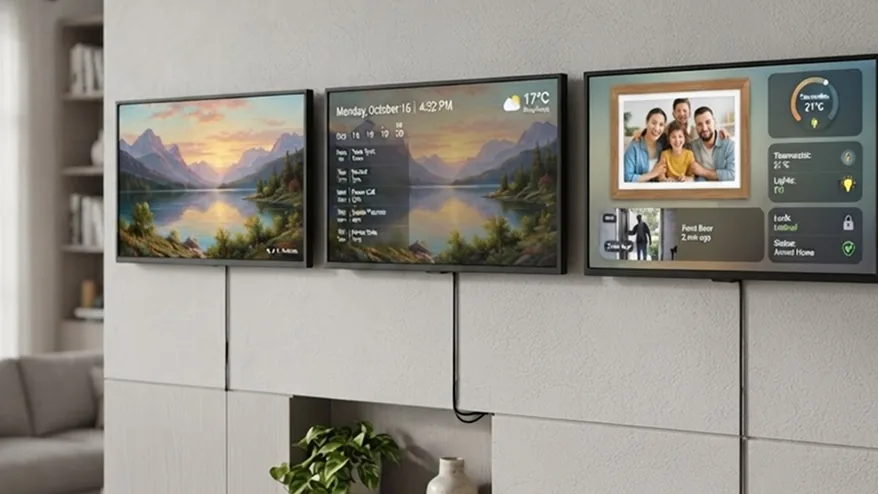
Pick a scene, the days it applies to and the hours it covers. Rules are laid out on a timeline so overlaps and gaps are visible rather than hypothetical, and the default scene fills anything you have not covered.
A bright dashboard in a hallway at night is a nuisance. Schedule a dim clock scene and it simply is not there any more — no timer to remember and no switch to find in the dark.
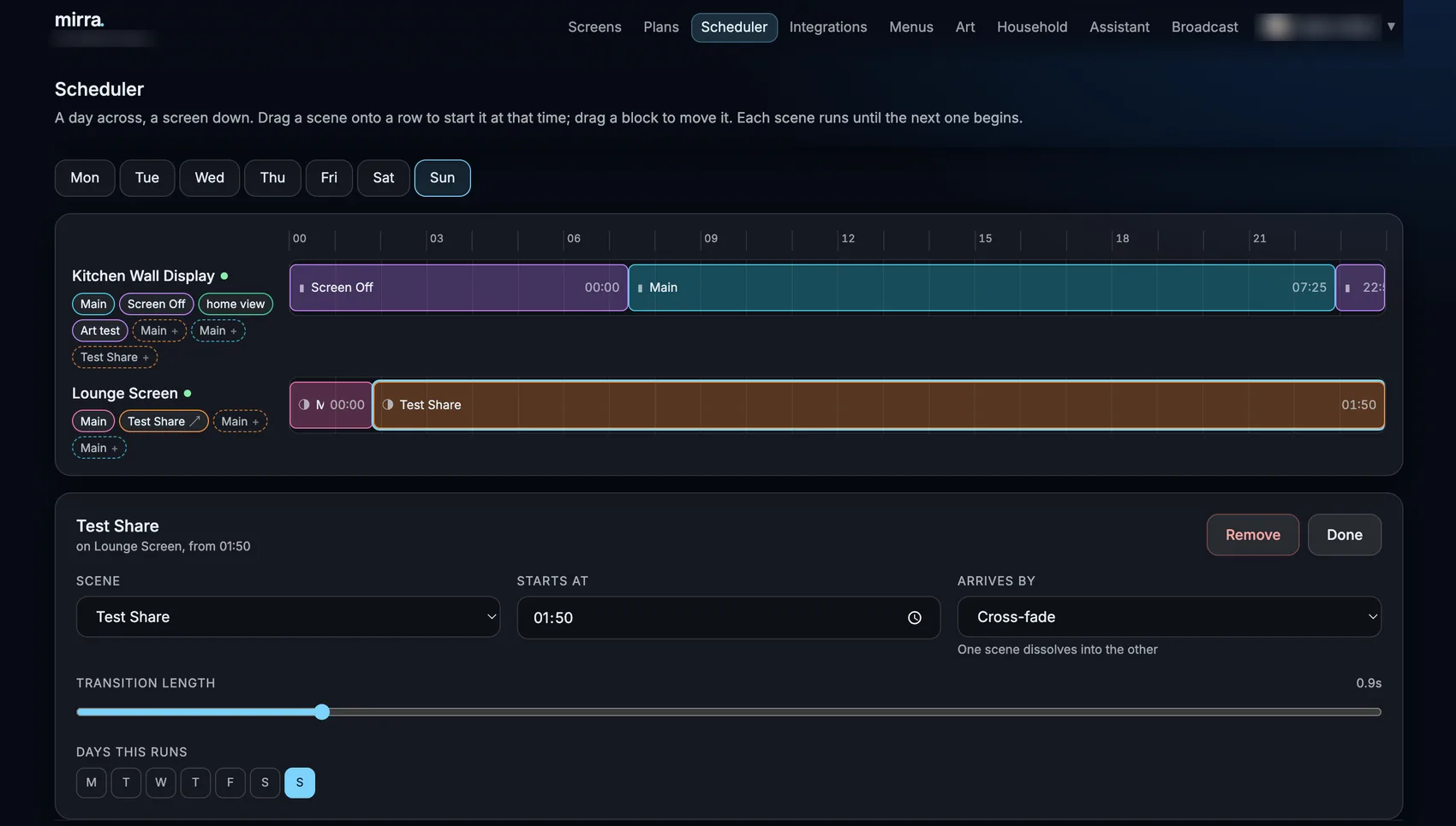
A day runs across, your screens run down, and each scene is a block you drag into place. Drop a scene onto a row to start it at that time, drag a block to move it, and each one runs until the next begins — so there is no such thing as a gap you forgot to fill.
Seeing every screen at once is the point. Scheduling one display at a time is fine until the hallway goes dim at ten and the kitchen is still showing the family calendar at midnight, and nothing in either screen's own settings would have told you. Stacked on one timeline, that is a picture rather than a discovery.
Selecting a block opens what it does at the seam: which scene, the minute it starts, the days it runs, and how it arrives — cut straight to it, or cross-fade over a length you choose. On a wall in a living room the fade is worth having. A dashboard that snaps from one thing to another catches the eye every time; one that dissolves over about a second does not.
Scheduling itself is on every plan. Every screen has its own schedule in its own editor, and a household with one display in a hallway never needs more than that.
The timeline above is the Pro one. Free and Home plans can see it — it is the clearest picture of what the house is doing either way — but arranging the whole household by dragging blocks across it is where Pro begins. That is the version worth paying for when there are three or four screens and their days have to agree with each other.
Calendar, weather and the school run between seven and nine, then back to something calmer.
Photographs and art on Saturday and Sunday, when nobody needs to know when the next meeting is.
The timeline shows the overlap so you can see which one wins before it surprises you on a wall.
Yes. Rules belong to a screen, so the kitchen and the study can behave completely differently.
It can. A scene set for when somebody is in the room takes precedence while they are there.
Start free on one screen. No card until you add a second.